

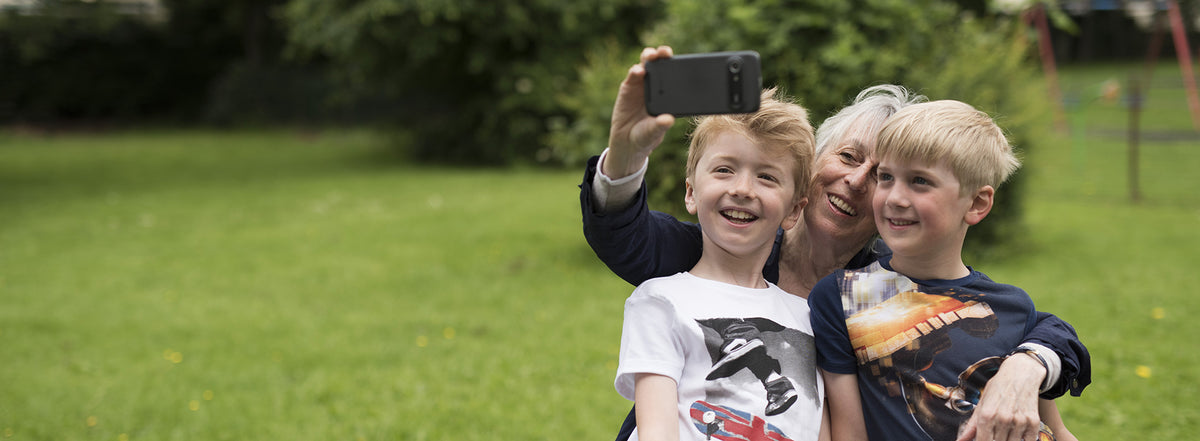
A picture is worth a thousand words, and Instagram is an app for sharing photos from everyday life. You can like and comment on other people’s photos and follow friends, family, celebrities, brands and shops for inspiration, in whatever way suits you.
Getting started
- Open the Play Store app on your smartphone.
- Search for Instagram in the search field at the top of the screen.
- Tap Install and accept the terms of use.
- When the installation is finished, tap Open.
- Register and create an account. If you already have a Facebook account, you can use it to log in instead.
View, like and comment on pictures
You move around Instagram using the menu at the bottom of the screen.
- View: Tap the house icon to open the Home tab, called the News feed. It shows posts from you and the people you follow. Instagram usually opens on this tab.
- Like: Tap the heart under a picture, or double-tap the picture itself. The number of likes appears below the picture.
- Comment: Tap the speech bubble under a picture to bring up the keyboard and write a comment. The person who posted the picture can read it, and so can everyone else who sees it.
- Mention someone: Type @ followed by a person’s username to direct your comment to them. They will get a notification.
Post a photo
- Tap the plus icon in the middle of the bottom menu.
- Tap Gallery to choose a photo already saved on your Doro smartphone, or tap Photo to take a new one.
- Improve your photo if you like. Try out the different filters, or tap Edit to zoom in or out with two fingers, move the photo with one finger, rotate it, adjust the exposure and more.
- Tap Next at the top right of the screen.
- Tap the field at the top that says Write a caption… to bring up the keyboard, then type your caption.
- To add a place, tap Add Location and choose one of the places suggested nearby. You can also tap the Find a location field at the top and start typing.
- To tag people, tap Tag People, then tap the photo and search for the person. Select them in the results and drag the tag with one finger onto the right person. Repeat for each person, then tap Done.
- Tap Share at the top right to publish your photo.
Search
- Tap the magnifying glass in the bottom menu to open the Explore tab. It shows popular photos from people you do not follow.
- Use the search field to find celebrities, sports teams or other users. Tap a result to see more.
- Tap Follow to see that account’s photos in your News feed.
If an account is private, the owner must approve your request before their photos appear in your News feed.
Private or public account
If you make your account private, only people you approve can follow you and see your photos.
- Tap the person icon at the far right of the bottom menu to open your profile.
- Tap the cogwheel at the top right to open Options.
- Scroll down to Private Account and tap the switch so that it turns blue.
To handle requests from people who want to follow you, tap the heart icon in the bottom menu, then tap Follow Requests at the top. Tap Confirm to accept a request or Delete to ignore it.
Hashtags (#)
A hashtag is the # symbol followed directly by a word or phrase, with no spaces or other characters. Hashtags make it easy to find posts on one subject from lots of different people.
- To find photos on a subject, type a hashtag in the search field, for example #visitlondon.
- Add hashtags to your own captions so that more people can find your posts, for example #ilovenewyork.
- At an event, a shared hashtag lets all the guests share their photos, for example #willandmariasweddingmay1st.
Share:
Facebook tips for posts, pages, events and Messenger
How to watch YouTube videos on your smartphone