

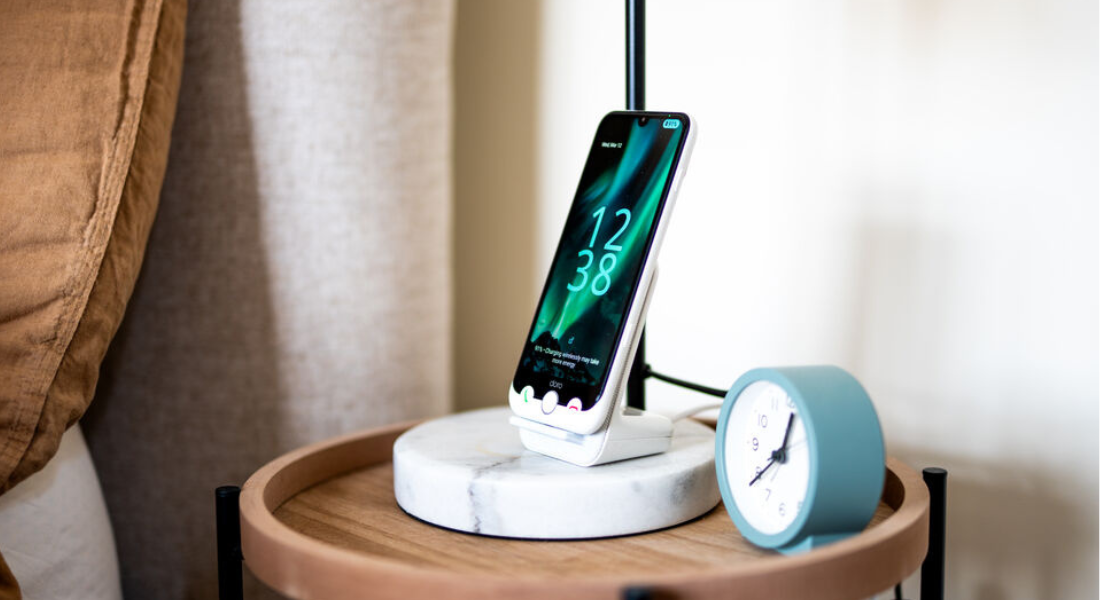
You can add your favourite apps to the home screen of your Doro Aurora smartphone for quick and easy access.
This step-by-step video shows you how to add an installed app to your home screen and choose where its icon appears.
Before you begin
- Make sure your smartphone is switched on and unlocked.
- Check that the app you want to add is already installed.
- Decide roughly where you want the app icon to appear on the home screen.
Add an app to the home screen
- Wake your phone by pressing the side button.
- Swipe up to unlock it.
- Tap the right-hand dot at the bottom of the screen.
- Select Organise apps.
- Select the middle option, Insert apps onto the home screen.
- Scroll through the list and select the app you want to add.
- Select the home screen position where you want the app to appear.
- Choose whether to place the new app before or after the app already in that position.
The new app will appear in the selected tile. The app that was there before will not be deleted. It will move to the next available position or page.
What to do next
Tap the new icon to open the app. You can repeat these steps whenever you want to add more apps to your home screen.
Share:
How to Adjust Screen Brightness on Doro Aurora
Switch from Doro Easy Interface to Android