

WhatsApp lets you send messages, make calls and stay in touch with friends and family using your Doro Aurora smartphone.
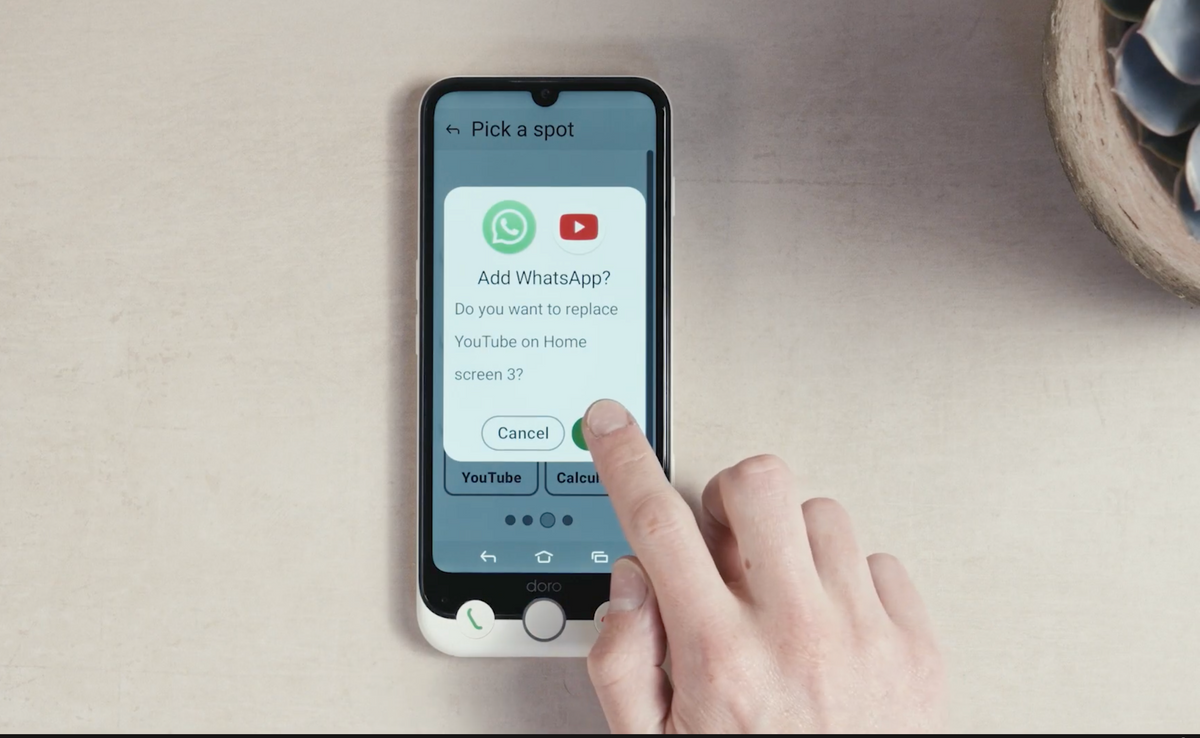
This step-by-step video shows you how to download WhatsApp from the Google Play Store and add the app icon to your home screen.
Before you begin
- Make sure your smartphone is connected to the internet.
- Check that you are signed in to the Google Play Store.
- Have your mobile phone number ready. You will need it when setting up WhatsApp.
Install WhatsApp
- Wake your phone using the side button.
- Swipe up to unlock it.
- Find and open the Play Store app.
- Tap Search at the bottom of the screen.
- Tap the search bar at the top and start typing WhatsApp.
- Select WhatsApp Messenger from the results.
- Tap Install.
- Wait for the app to download and install.
- Tap Open to launch WhatsApp.
Add WhatsApp to your home screen
- Press the home key to leave WhatsApp.
- When asked whether you want to add the app to your home screen, select Yes.
- Choose an empty space or select an app icon you want to replace.
- Swipe between the available positions.
- Tap the position where you want the WhatsApp icon to appear.
- Select Add.
The WhatsApp icon will now appear on your home screen.
What to do next
Open WhatsApp and follow the on-screen instructions to confirm your phone number and finish setting up your account.
Share:
Adjust the Doro Aurora Charging Stand Night Light