

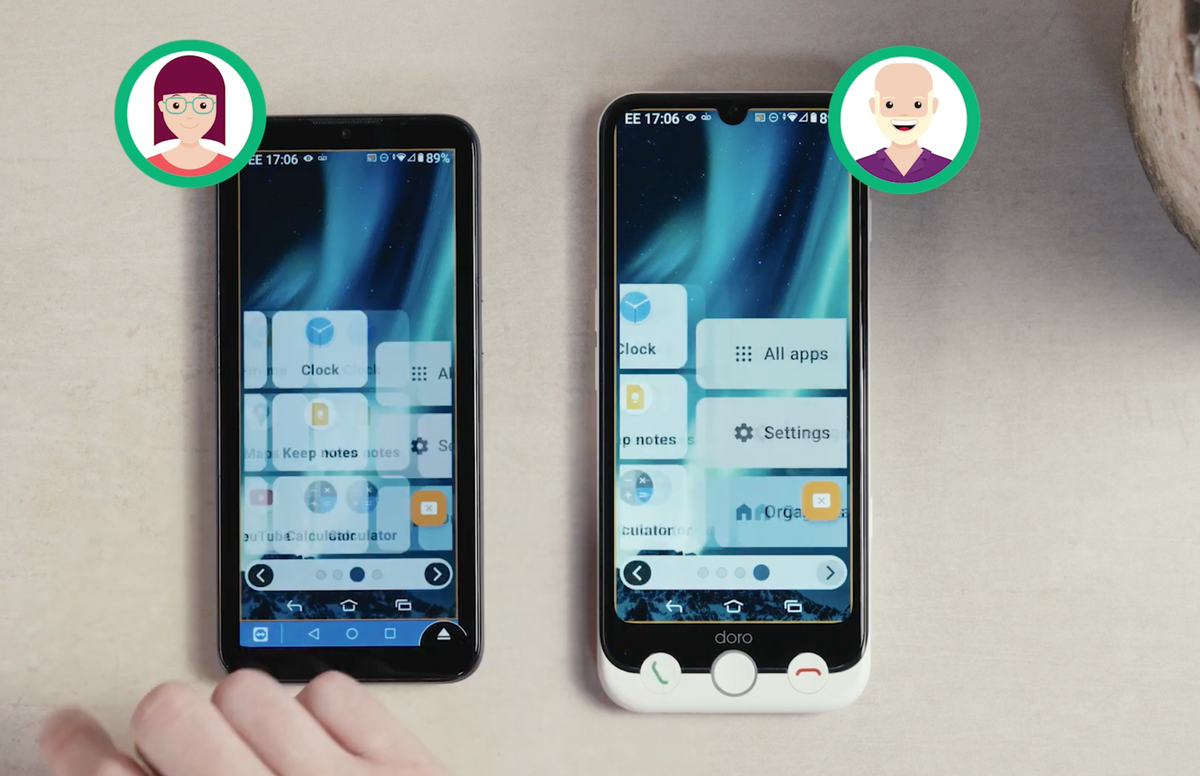
The TeamViewer QuickSupport app lets a trusted person view and control your Doro Aurora smartphone from their own phone.
This step-by-step video shows you how to share your support link, approve the connection and end the support session when you are finished.
Before you begin
- Only connect with someone you know and trust.
- Make sure both phones are connected to the internet.
- Choose a messaging app that you can use to send the support link.
- Do not approve access if you do not recognize the person requesting it.
Start a support session
- Wake your Doro Aurora using the side button.
- Swipe up to unlock the phone.
- Swipe up again to open the full app list.
- Type support in the search bar.
- Open the QuickSupport app.
- Select Share your ID.
- Choose a messaging app and send the support link to your trusted contact.
Connect the supporter's phone
- On the supporter's phone, open the message containing the support link.
- Tap the first link, labelled Connect to my device.
- TeamViewer will open and begin connecting.
Allow access on your Doro Aurora
- Select Verify User.
- Confirm that you recognize and trust the person connecting.
- Tick I trust this person to allow immediate access.
- Select Allow Access.
- Select Start Now.
Your Doro Aurora screen will now appear on the supporter's phone. They can guide you, change settings or show you how to complete a task.
End the support session
You remain in control and can stop the session at any time.
- Tap the X in the orange box.
- Select Close to end the connection.
Share:
How to Use Gemini Voice Commands on Doro Aurora
How to Apply a Doro Aurora Screen Protector