
Accessibility & Product Support
Get Remote Help with TeamViewer
Need help changing a setting, installing an app or connecting your Doro device to Wi-Fi? TeamViewer allows a trusted friend or family member to help you remotely, even when they’re not with you.
Using the TeamViewer QuickSupport app on your Doro smartphone or tablet, someone you trust can securely view and control your device from their own phone, tablet or computer — helping them guide you through the problem in real time.
How to connect with TeamViewer
1. Open TeamViewer QuickSupport
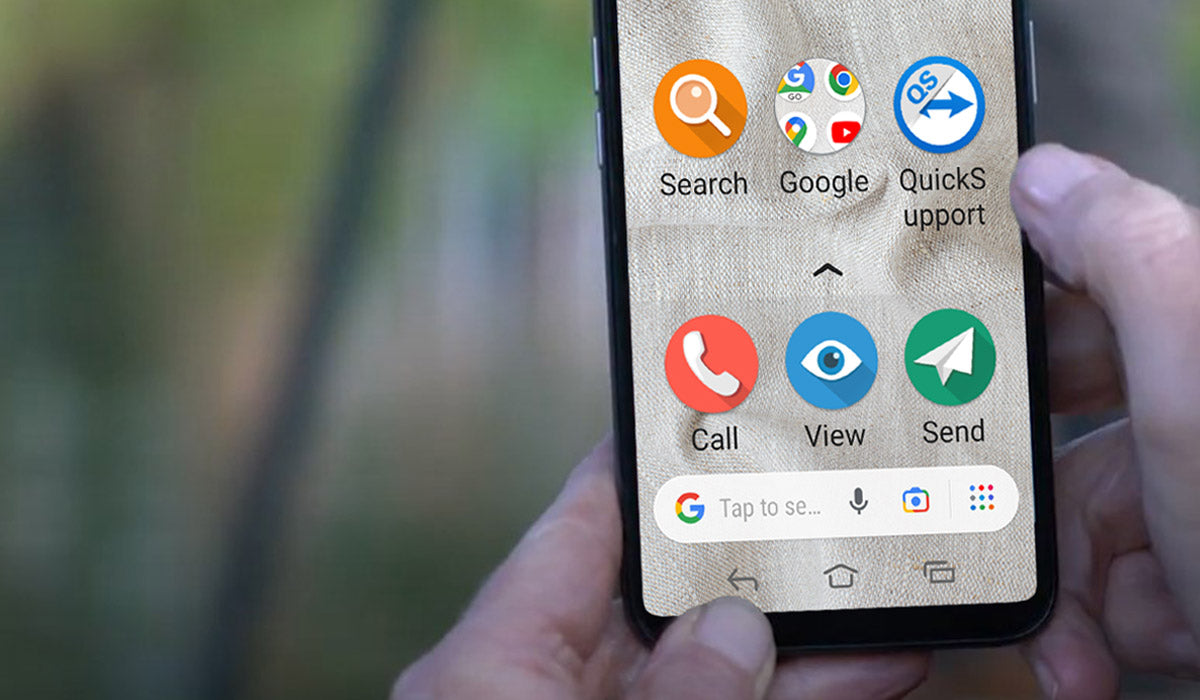
The TeamViewer QuickSupport app comes pre-installed on supported Doro smartphones.
If it isn’t already installed, you can download TeamViewer QuickSupport for free from the Google Play Store.
2. Ask your trusted contact to open TeamViewer
The person helping you will need TeamViewer Remote Control on their smartphone or tablet.
They can also connect using a computer through the TeamViewer website.
3. Share your TeamViewer ID
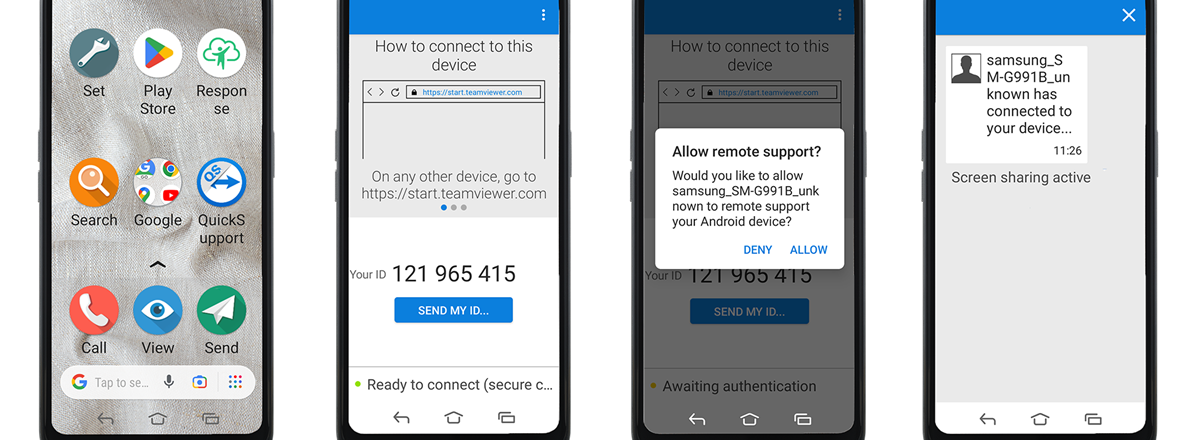
Open QuickSupport on your Doro device.
A TeamViewer ID will appear on the screen. Tell or send this ID to the trusted person helping you.
4. Your contact enters the ID
Your friend or family member enters your TeamViewer ID into TeamViewer on their device to request a connection.
5. Allow remote support
A message will appear on your Doro device asking you to approve the connection.
Select Allow to give your trusted contact access.
6. You're connected
Your trusted contact can now help you directly on your device, as though they were sitting beside you.
When you're finished, simply end the TeamViewer session.
Only connect with someone you trust
TeamViewer gives another person remote access to your device, so only share your TeamViewer ID and approve a connection when you know and trust the person helping you.
You remain in control of the connection and must approve access on your Doro device before remote support can begin.